
Click to Pay
A network-standard card payment experience that allows customers to pay using their saved cards, without manually entering card details.
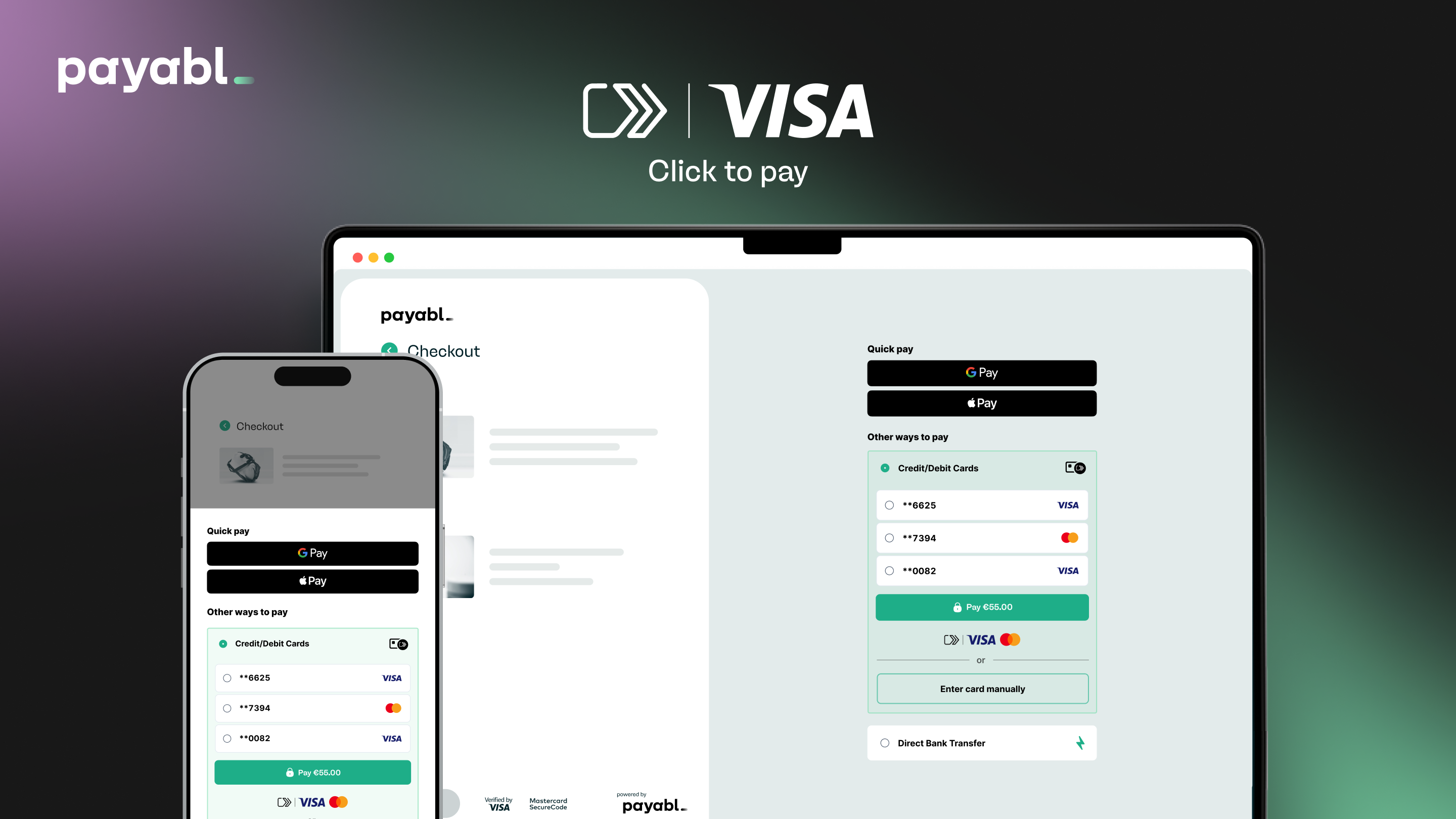
Overview
Click to Pay is a faster, safer way for customers to pay online without manually entering card details, available through payabl. Hosted Payment Page (HPP). Powered by EMV® Secure Remote Commerce (SRC) and recognized by the Click to Pay icon, it works with major card brands such as Visa and Mastercard.
NoteAmerican Express cards cannot currently be linked to Click to Pay profiles. They can still be used via manual card entry in checkout.
Click to Pay enabled by defaultPlease note that Click to Pay is automatically enabled by default in your production environment.
Benefits for Your Customers
- Faster checkout – Returning customers complete payment without re-entering card details.
- Improved security – Card data is encrypted and managed by the card networks, and is not stored by you.
- Multiple cards per profile – Customers can store and choose from several cards.
- Consistent experience – The same Click to Pay flow is used across thousands of merchants.
Customer Flows
Click to Pay follows four core customer flows, depending on whether the cardholder is returning or new, and whether their device is already recognized. View the Click to Pay customer flow demo.
Registered Customer – Recognized Device
Used when a returning customer accesses checkout from a device that is already linked to their Click to Pay profile.
- Selects Click to Pay.
- Saved cards appear automatically.
- Selects a card and completes payment.
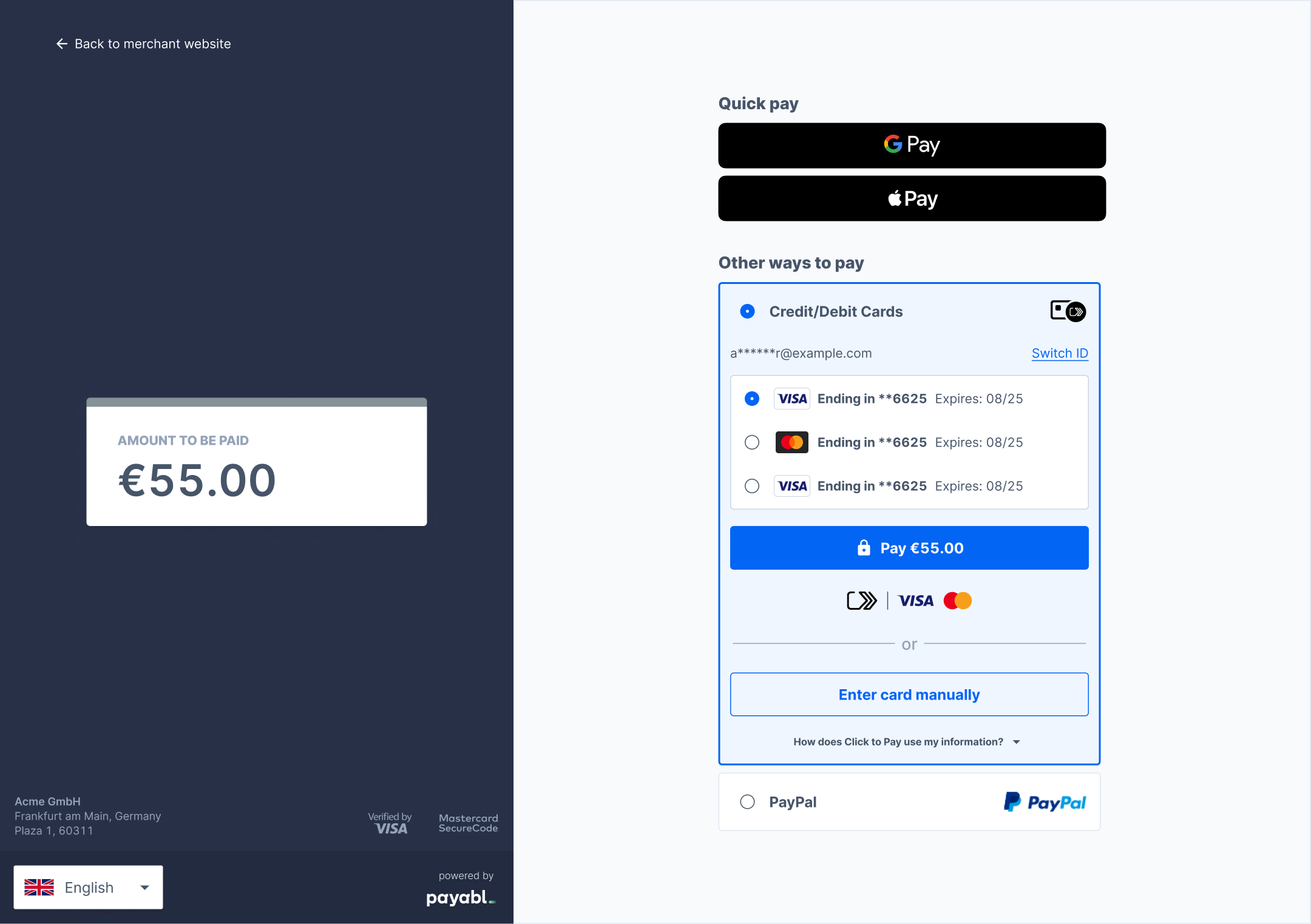
Saved Cards Selection Tray
Registered Customer – Unrecognized Device
Used when a returning customer accesses checkout from a new or unrecognized device and must verify their Click to Pay profile.
- Selects Click to Pay.
- Receives a one-time code to verify their Click to Pay account.
- Selects a saved card and completes payment.
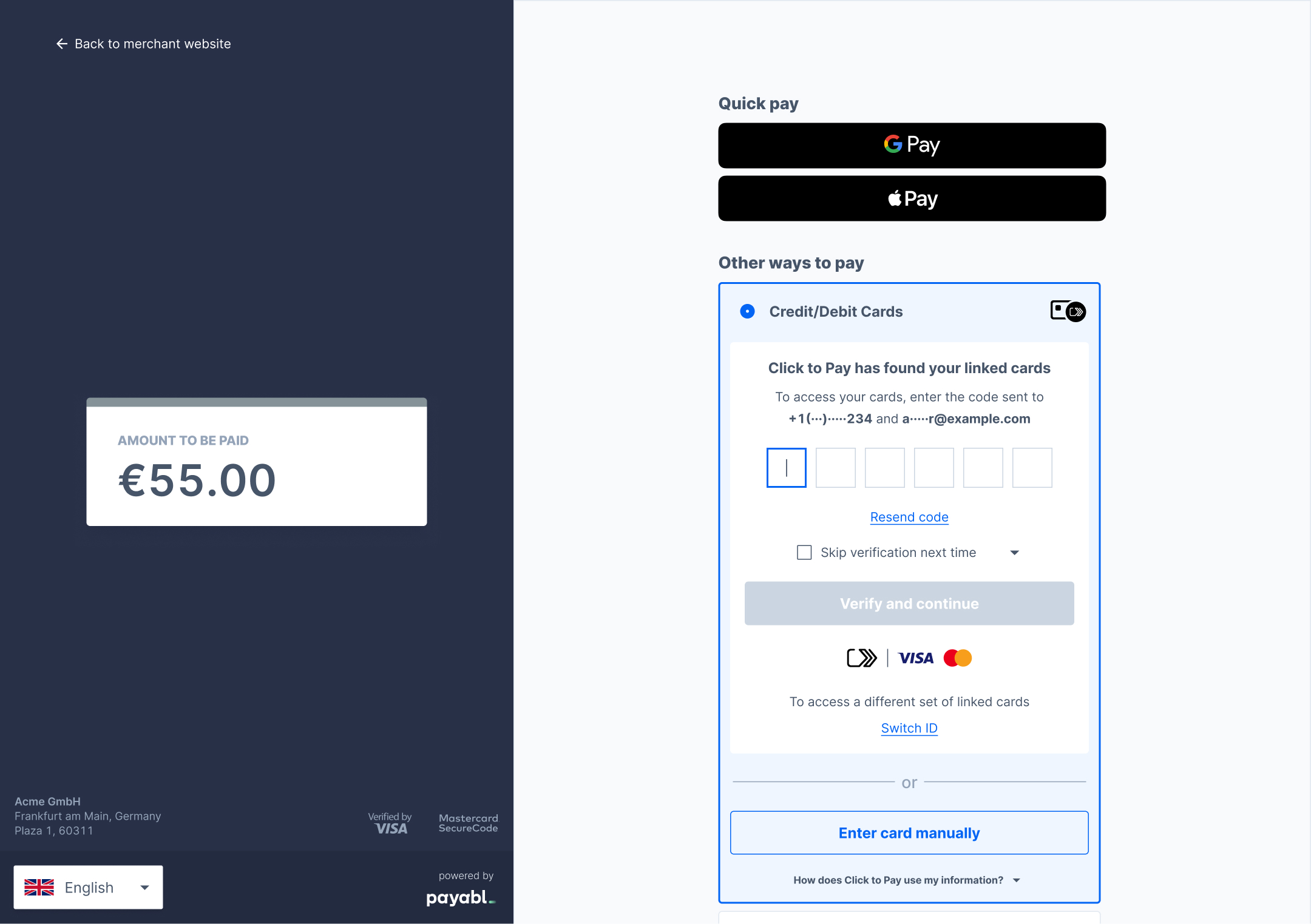
One-time Code Entry Page
Manual Card Entry & Enrollment
Used when a customer enters a card manually, to either link an additional card to an existing profile or create a new Click to Pay profile.
- Selects Click to Pay.
- Clicks Enter card manually.
- Taps Link this card to Click to Pay.
- Adds billing address and completes payment.
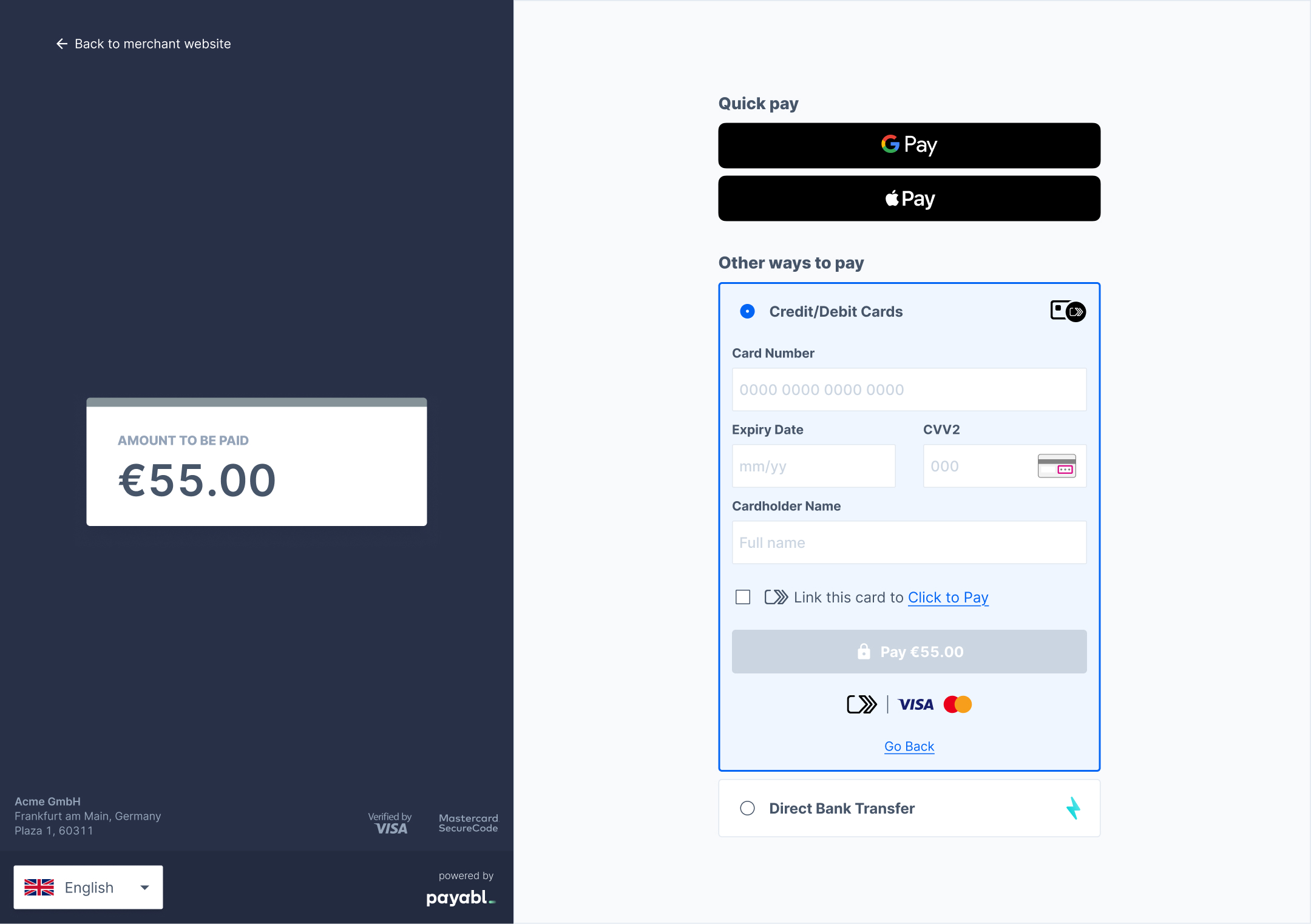
Manual Card Entry Form Page
Switch ID
Switch ID allows customers to access a different Click to Pay profile (for example, using another email address) on the same device.
- Selects Switch ID.
- Enters a different email address.
- Follows the unrecognized device flow.
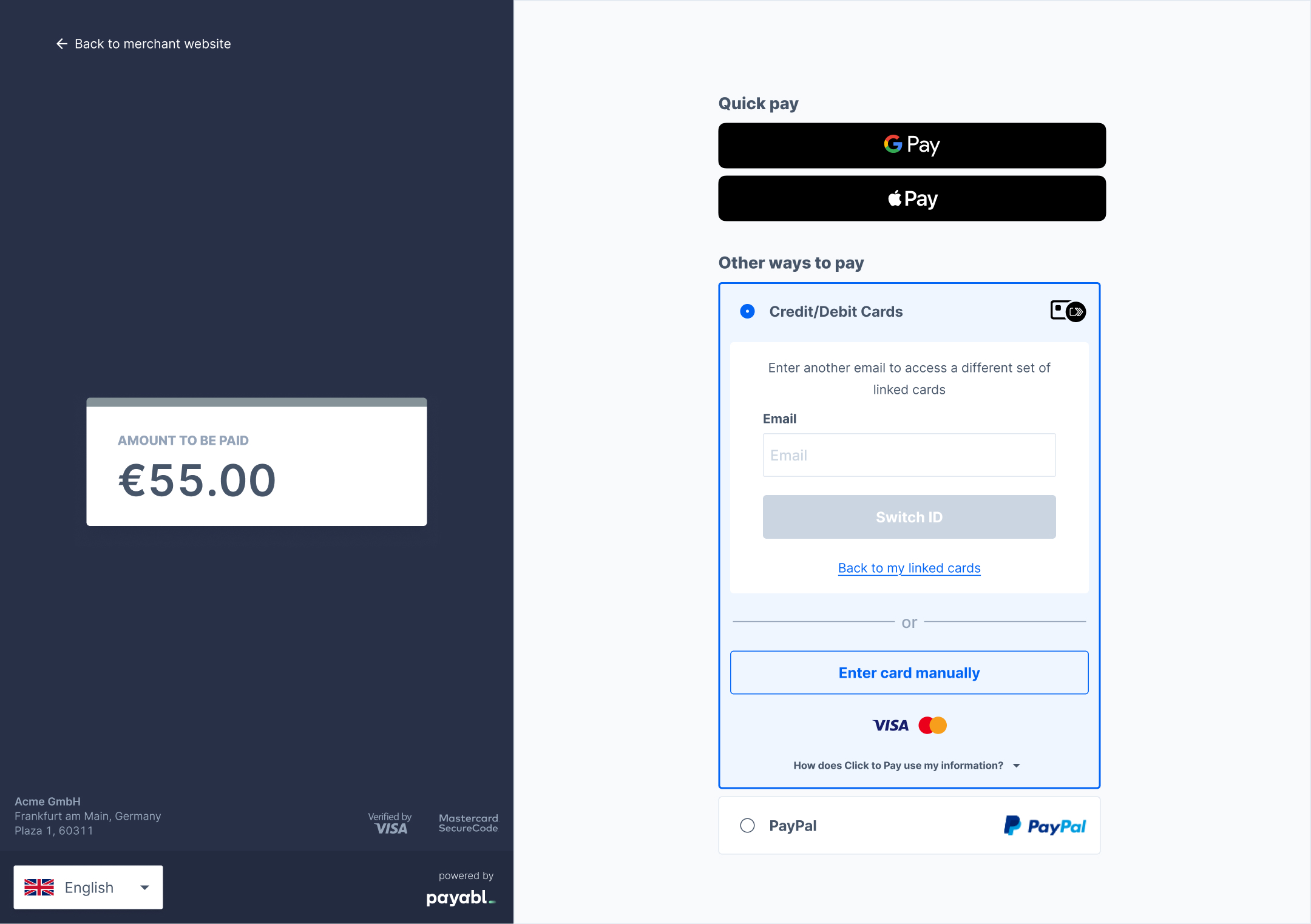
Switch ID Authorization Page
What This Changes in Your Checkout
- Click to Pay enhances your standard card payment method in the HPP checkout
- Both new and returning customers can use Click to Pay instead of manually entering card details
- Your existing payment integrations remain unchanged
- No additional development or configuration is required
Already using payabl. HPP? Click to Pay can be enabled on your existing checkout.
Not yet integrated? Click to Pay becomes available on HPP and can be enabled upon request once you integrate.
Sandbox Testing
Please see below information and guidance on how to test Click to Pay in our Sandbox environment.
- You can test Click to Pay on all 3 public Sandbox accounts found here
| Field | Value |
|---|---|
| For Mastercard |
|
| First Name | Any dummy first name (e.g., John) |
| Last Name | Any dummy last name (e.g., Doe) |
| Street | Any dummy street address |
| Zip/Postal Code | Any dummy postal code |
| City | Any dummy city |
| Select a Country | Select any country |
| Mobile Number | Must be a real, valid mobile number (Do not use dummy data here) |
How to Enable
- If Click to Pay is not already enabled for your production account, please contact the payabl. Technical Support Team to request Click to Pay activation.
If you are already onboarded, include your Merchant ID.- We handle all registration and configuration.
- Once enabled, the Click to Pay button appears automatically in your HPP checkout.
For any inquiries or to request enablement, please reach out to payabl. Technical Support via email at [email protected]. Our team is available Monday to Friday, from 09:00 to 17:00 CET/CEST.
Updated about 2 months ago