
Hosted Payment Page
The Hosted Payment Page provides a unified payment UI that presents all supported payment methods in a single flow. It's the recommended integration — one setup covers Apple Pay, Instant Bank Transfer, and Pay by Card, and payabl. manages the method selection UI for you.
| Order Screen | Hosted Payment Page |
|---|---|
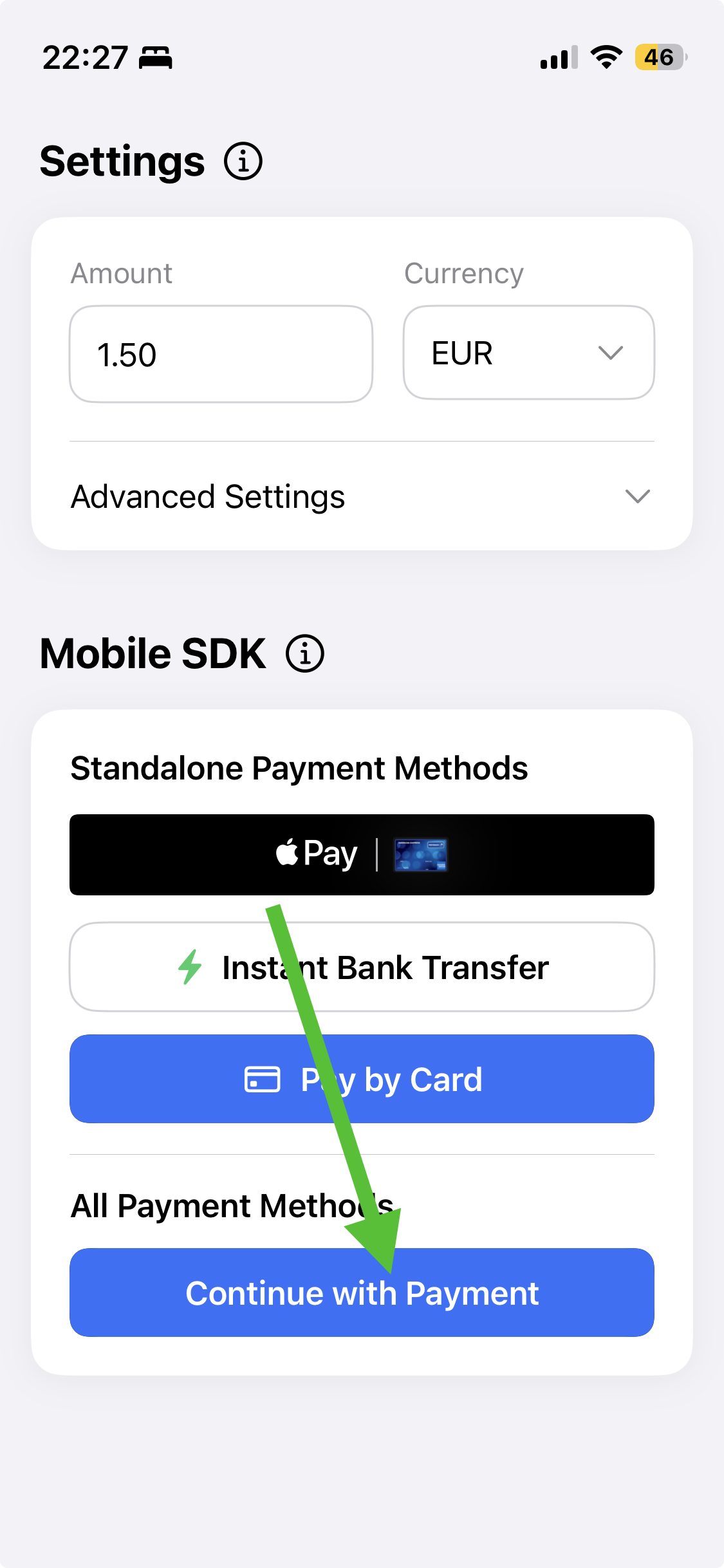 | 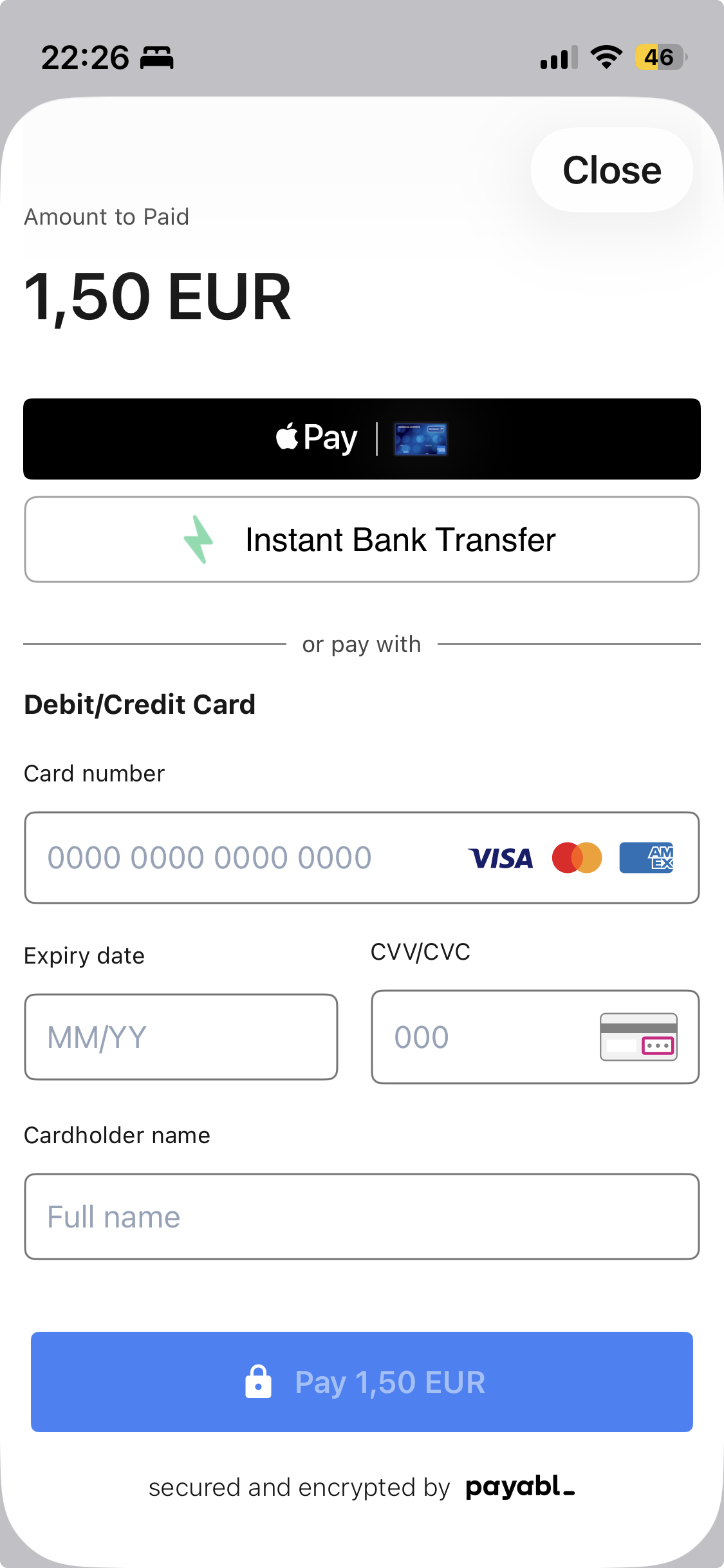 |
Flow: user taps Pay → Hosted Payment Page opens → user selects a payment method → result is returned via PBLPaymentResult.
Prerequisites
- The SDK is added to your project — see iOS SDK.
- Your backend can create a session via
/mobile/init— see Setup Your Server. - Each payment method you enable in the checkout has its own setup — see below.
Payment method setup
The Hosted Payment Page gives you one integration for the payment UI, but each payment method you enable still requires its own configuration. Complete the setup for every method you plan to offer:
Pay by Card — works out of the box, no additional setup.
Apple Pay — requires a one-time certificate exchange between payabl. and your Apple Developer account before it can work:
- Complete the certificate exchange (CSR from payabl. → Payment Processing Certificate → Apple Merchant ID back to payabl.) — separately for sandbox and production.
- Enable the Apple Pay capability in Xcode and select your Apple Merchant ID; pass the same ID as
appleMerchantIdinPBLConfiguration. - Your
/mobile/initrequest includes thecountryparameter.
→ Full setup: Apple Pay
Instant Bank Transfer — requires deep link handling so the customer returns to your app after authorizing in their bank:
- Your
/mobile/initrequest includes the redirect URLs (url_success,url_failed,url_return,notification_url) andapp_schema. - Your
Info.plistregisters the URL scheme matching those redirect URLs. - Your delegate implements
instantBankTransferRedirectionUrl()returning your redirect path.
→ Full setup: Instant Bank Transfer
If a payment method's setup is incomplete, it may not appear in the checkout or may fail when selected — while the other methods continue to work. If a method is missing or failing for your customers, check its setup page above first.
Integration
The SDK drives the payment flow through delegates. Your view model adopts:
PBLPaymentPageTapDelegate— provides the session configuration when the user taps Pay, and receives the payment result.PBLErrorDelegate— receives SDK errors raised outside the payment result.
1. Fetch session configuration
Request a session from your backend and build a PBLConfiguration. Create a new session for every payment attempt.
import SwiftUI
import PayablMerchant
import Combine

class CartViewModel: ObservableObject {
    @Published var isLoading = false

    // In your server, this endpoint should call the /mobile/init API
    let backendCheckoutUrl = URL(string: "backend_endpoint/payment_page")!

    func prepareOrder() async -> PBLConfiguration? {
        var request = URLRequest(url: backendCheckoutUrl)
        request.httpMethod = "POST"

        return await withCheckedContinuation { continuation in
            let task = URLSession.shared.dataTask(with: request) { data, response, error in
                guard let data = data,
                      let json = try? JSONSerialization.jsonObject(with: data) as? [String: Any]
                else { return }

                let sessionId = json["sessionId"] as! String
                let ephemeralKey = json["empheralKey"] as! String
                let transactionId = json["transactionId"] as! Int

                continuation.resume(
                    returning: PBLConfiguration(
                        sessionId: sessionId,
                        ephemeralKey: ephemeralKey,
                        customerId: "your_stable_customer_id",
                        environment: .sandbox, // use .production when going live
                        transactionId: transactionId,
                        appleMerchantId: "merchant.payabl.isdk" // your Apple Merchant ID
                    )
                )
            }
            task.resume()
        }
    }
}
Saved cardsThe SDK can securely save a customer's card and offer it for reuse on their next payment. To enable this, pass a stable, unique
customerIdfor the customer inPBLConfiguration— the same value every time that customer pays.Saved cards are scoped to the
customerId, so the value must consistently identify the same person across sessions (for example, your internal customer ID). If you pass a different, random, or emptycustomerIdbetween payments, previously saved cards won't be shown.Never use a value that changes per session (such as the
sessionId) or personally identifying data (such as an email address) as thecustomerId.
2. Launch the Hosted Payment Page
Adopt PBLPaymentPageTapDelegate to provide the configuration when the user taps Pay and to receive the result. Present the payment UI using PBLPaymentButton.
extension CartViewModel: PBLPaymentPageTapDelegate {
    // Called when the user taps Pay — load the session, then hand the config back to the SDK
    func paymentPageTapped(onLoadSessionCompleted: @escaping (PBLConfiguration) -> Void) {
        Task {
            guard let config = await prepareOrder() else { return }
            onLoadSessionCompleted(config)
        }
    }

    // Called with the final result of the payment
    func paymentPageCompleted(result: PBLPaymentResult) {
        handlePaymentResult(result)
    }

    // Required if Instant Bank Transfer is enabled — must match the redirect URLs sent in /mobile/init
    func instantBankTransferRedirectionUrl() -> String {
        return "payabl://payment-callback"
    }
}struct ContentView: View {
@StateObject var cartVM = CartViewModel()
var body: some View {
VStack {
PBLPaymentButton(delegate: cartVM, errorDelegate: cartVM) {
Text("Checkout")
.foregroundStyle(.white)
.font(.body)
.frame(maxWidth: .infinity, minHeight: 45)
}
}
.foregroundStyle(.white)
.background(.black)
.clipShape(RoundedRectangle(cornerRadius: 10))
.padding()
}
}
If Instant Bank Transfer is enabled, yourInfo.plistmust register the URL scheme andinstantBankTransferRedirectionUrl()must return your redirect path — see Instant Bank Transfer.
3. Handle the result
paymentPageCompleted returns a PBLPaymentResult. Handle all three cases.
func handlePaymentResult(result: PBLPaymentResult) {
    switch result {
    case .completed:
        // Payment successful — update order status
        break
    case .canceled:
        // User cancelled the payment
        break
    case .failed:
        // Payment failed — inspect the result for the error code
        break
    }
}
Errors raised outside the payment result are delivered through PBLErrorDelegate.
extension CartViewModel: PBLErrorDelegate {
    func errorOccured(error: any Error) {
        // Handle SDK errors (e.g., configuration or session issues)
        print("error from sdk: ", error)
    }
}
For Instant Bank Transfer, the authoritative transaction status is confirmed server-to-server via thenotification_urlwebhook — reconcile against your backend before fulfilling the order rather than relying on the client result alone.
Best practices
Do:
- Create a new session for each payment attempt.
- Build the
PBLConfigurationonly when the user starts a payment. - Pass a stable, unique
customerIdper customer if you want saved cards to work.
Don't:
- Reuse sessions across multiple payments.
- Share sessions between users.
- Use a changing or shared value for
customerId— it breaks saved cards and can mix customers' saved cards.
Testing
Use the sandbox environment (.sandbox) throughout development. To smoke-test a card payment, use this success card (expiry: any future date; CVV: any 3 digits):
| Card network | Card number | Expected result |
|---|---|---|
| VISA | 4149011500000147 | PBLPaymentResult.completed |
For the complete set of test cards, decline scenarios, Apple Pay test setup, and bank simulator values across all payment methods, see Testing.
Common issues
| Issue | Cause & resolution |
|---|---|
| Instant Bank Transfer doesn't return to the app | URL scheme not registered in Info.plist, the redirect URLs / app_schema are missing from /mobile/init, or instantBankTransferRedirectionUrl() isn't returning the correct path. See Instant Bank Transfer. |
| Apple Pay not shown in the checkout | Certificate exchange incomplete, appleMerchantId missing or doesn't match the configured Merchant ID, Apple Pay capability not enabled in Xcode, country missing from /mobile/init, or Apple Pay isn't set up on the device. See Apple Pay. |
| Saved card not appearing for a returning customer | A different, empty, or changing customerId was passed. Use the same stable customerId for the customer on every payment. |
| Session error on launch | The session was reused, expired, or belongs to a different user. Create a fresh session per attempt. |
When something goes wrong, see Error Handling & Troubleshooting.
Updated 4 months ago