
Pay by Card
Pay by Card lets customers pay with a debit or credit card in a dedicated, card-only sheet. Use the standalone mode when you want to offer card payments directly — for example, as your only payment method or behind your own payment method selection UI. If you want payabl. to present all payment methods in one flow instead, use the Hosted Payment Page.
| Order Page | Pay By card page |
|---|---|
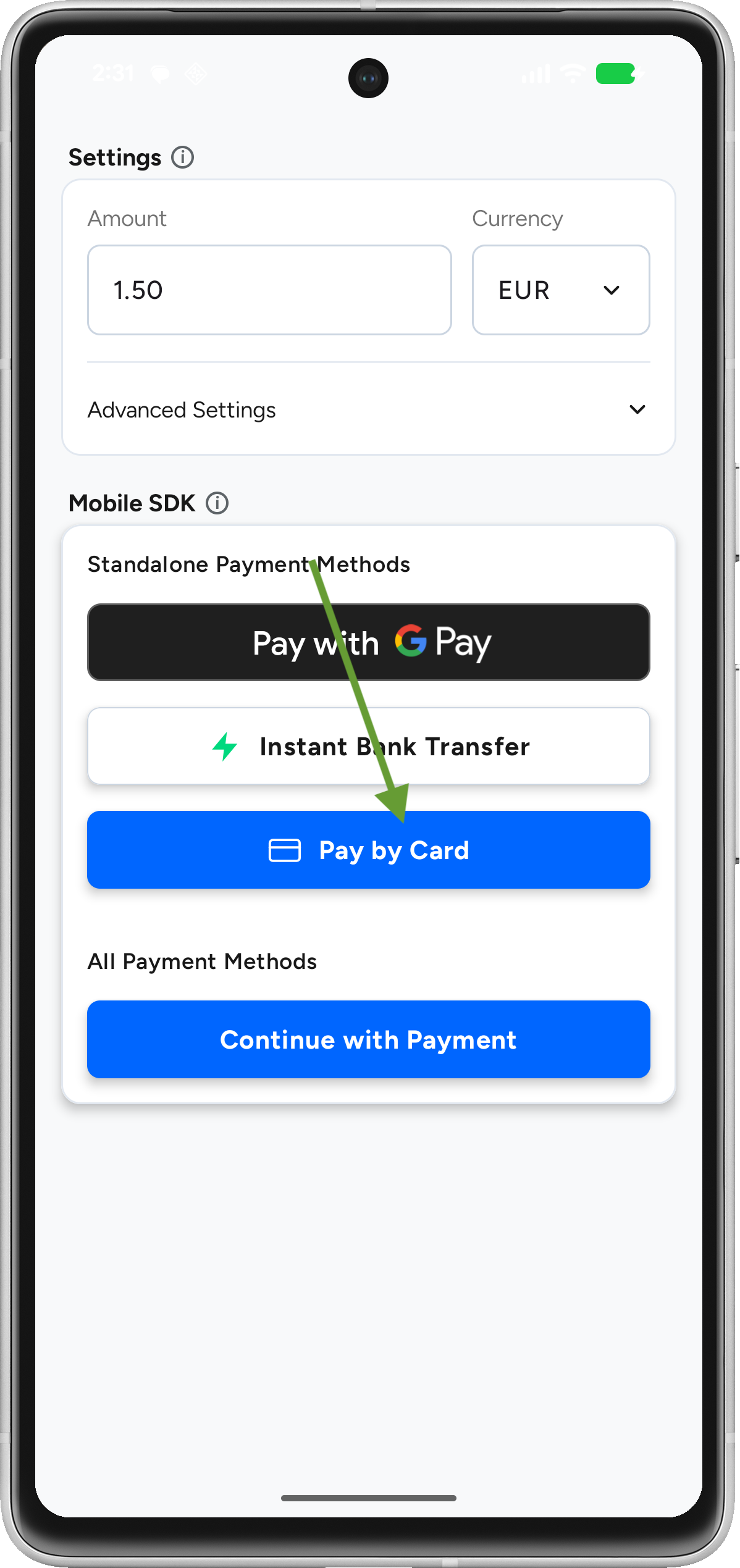 | 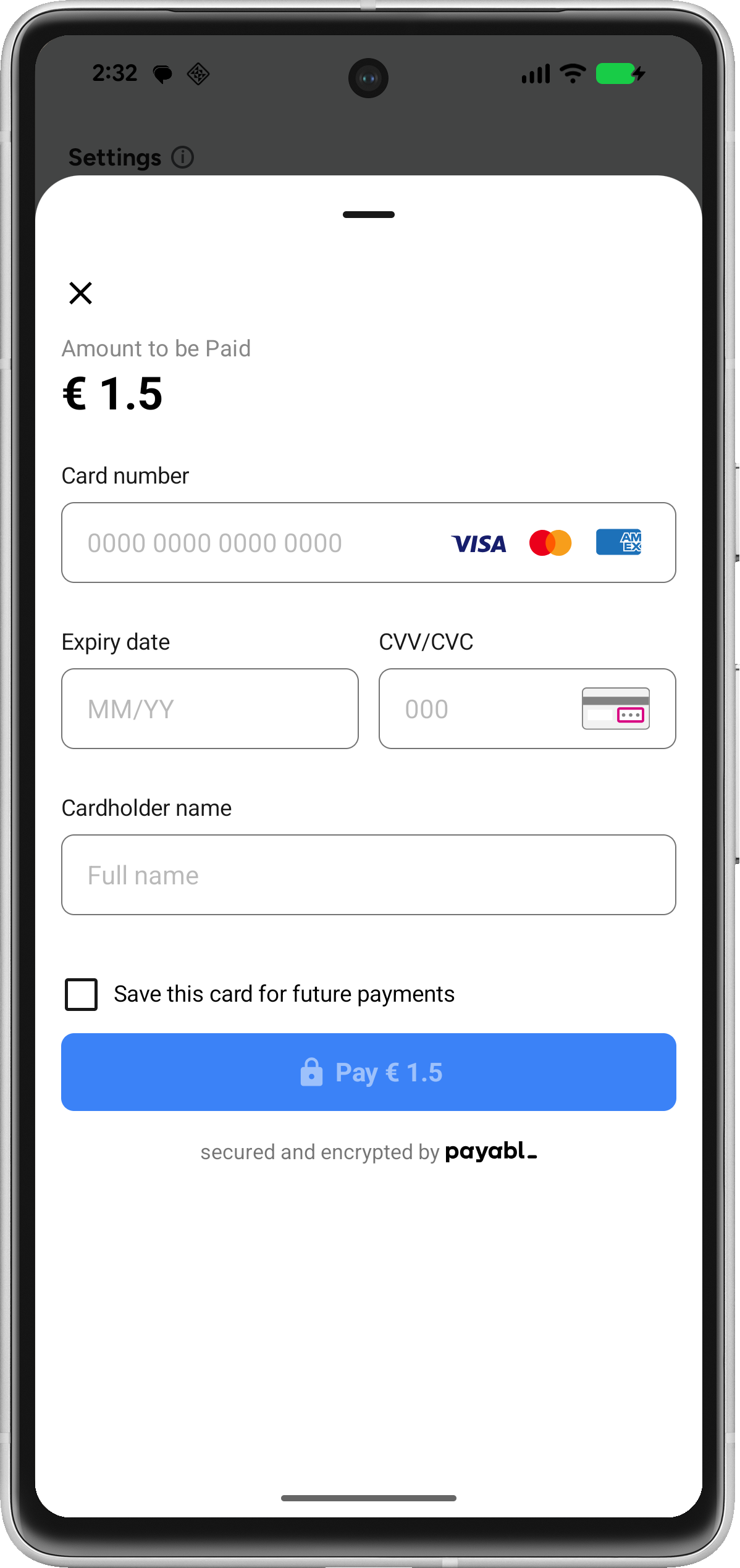 |
Flow: user taps Pay → card sheet opens → user enters card details (or selects a saved card) → result is returned via PBLPaymentResult.
Prerequisites
- The SDK is added to your project — see Android SDK.
- Your backend can create a session via
/mobile/init— see Setup Your Server.
Integration
1. Fetch session configuration
Request a session from your backend and build a PBLConfiguration. Create a new session for every payment attempt.
private suspend fun fetchSessionConfiguration(): PBLConfiguration {
    val response = apiClient.initPayment()
    return PBLConfiguration(
        sessionId = response.sessionId,
        ephemeralKey = response.ephemeralKey,
        userId = "user_id_from_app",
        environment = PBLEnvironment.SANDBOX // use PBLEnvironment.PRODUCTION when going live
    )
}
Saved cardsThe SDK can securely save a customer's card and offer it for reuse on their next payment. To enable this, pass a stable, unique
userIdfor the customer inPBLConfiguration— the same value every time that customer pays.Saved cards are scoped to the
userId, so the value must consistently identify the same person across sessions (for example, your internal customer ID). If you pass a different, random, or emptyuserIdbetween payments, previously saved cards won't be shown.Never use a value that changes per session (such as the
sessionId) or personally identifying data (such as an email address) as theuserId.
2. Launch Pay by Card
Initialize the SDK only when the user starts a payment, then start the card flow.
private var payablSDK: PayablSDK? = null

private fun placeOrderWithSessionInit() {
    lifecycleScope.launch {
        val configuration = fetchSessionConfiguration()
        payablSDK = PayablSDK.init(configuration)
        payablSDK?.startPayByCard(supportFragmentManager) { result ->
            handlePaymentResult(result)
        }
    }
}
3. Handle the result
The SDK returns a PBLPaymentResult. Handle all three cases, and release the SDK reference afterwards.
private fun handlePaymentResult(result: PBLPaymentResult) {
    when (result) {
        is PBLPaymentResult.Completed -> {
            // Payment successful — update order status
        }
        is PBLPaymentResult.Canceled -> {
            // User cancelled the payment
        }
        is PBLPaymentResult.Failed -> {
            // Payment failed — inspect result for the error code
        }
    }
    payablSDK = null
}
Best practices
Do:
- Create a new session for each payment attempt.
- Initialize
PayablSDKonly when the user starts a payment. - Release
payablSDKafter receiving a result. - Pass a stable, unique
userIdper customer if you want saved cards to work.
Don't:
- Reuse sessions across multiple payments.
- Initialize the SDK at app startup.
- Share sessions between users.
- Use a changing or shared value for
userId— it breaks saved cards and can mix customers' saved cards.
Testing
Use the sandbox environment (PBLEnvironment.SANDBOX) throughout development. To smoke-test a payment, use this success card (expiry: any future date; CVV: any 3 digits):
| Card network | Card number | Expected result |
|---|---|---|
| VISA | 4149011500000147 | PBLPaymentResult.Completed |
For the complete set of test cards and decline scenarios (insufficient funds, do-not-honor, and more), see Testing.
Common issues
| Issue | Cause & resolution |
|---|---|
| Saved card not appearing for a returning customer | A different, empty, or changing userId was passed. Use the same stable userId for the customer on every payment. |
| Session error on launch | The session was reused, expired, or belongs to a different user. Create a fresh session per attempt. |
| Payment fails with an error code | Look up the code in the Error Code Reference — declines like insufficient funds (51) come from the card issuer and are expected in normal operation. |
When something goes wrong, see Error Handling & Troubleshooting.
Updated 4 months ago